THINGS TO KNOW BEFORE UPDATING
- You will need: Arc, a computer with a USB-C port, a Chromium Browser (Chrome, Edge, Brave)
- Total Time: 5 – 10 minutes.
- Questions? Shoot us a note here.
HOW DO I KNOW WHAT FIRMWARE I HAVE?
To check your firmware version, the steps vary depending on your unit. If your Arc was purchased in or after January 2026, it already includes the latest firmware—simply press and hold the front alarm knob for 5 seconds, and the firmware version will appear on the display.
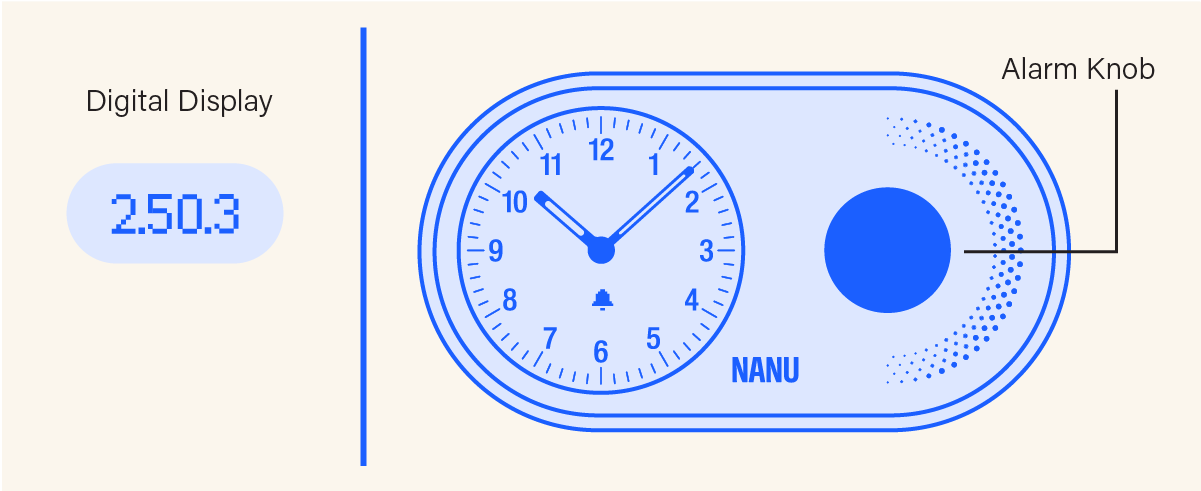
If your unit was purchased before January 2026 and has not yet been updated, the firmware version is shown during the power-down process. To view it, unplug Arc, then press and hold both back knobs at the same time for 10 seconds. As the device powers down, the firmware version will briefly appear on the display before the unit turns off. After updating to firmware version 2.50.3 (January 2026), you’ll be able to check the firmware at any time using the front knob method.
HOW DO I KNOW WHAT VERSION IS THE NEWEST UPDATE?
You can find the most recent version on the Arc firmware release notes, and the firmware update page.
FIRMWARE TROUBLESHOOTING
Arc won’t turn back on after firmware update
With the device plugged in, press and hold the front knob and snooze bar at the same time for at least 12 seconds, then release both. You should see the display turn back on when you let go.
Arc firmware update on non-USB-C computer
If your computer doesn’t have a USB-C port, no problem — you can use an inexpensive USB-A to USB-C adapter. Something like this works well and is widely available.
What devices can I use for an Arc firmware update?
To perform the firmware update, you’ll need a Mac or PC computer or laptop. Unfortunately, updates can’t be completed from an iPad or iPhone, even when using a supported browser like Chrome.
Arc firmware driver won’t download (PC / Chrome)
Please note, these troubleshooting steps are for PCs only! Please try these simple steps:
- Check if Chrome is waiting for you. Sometimes Chrome opens a small “Save” window in the background. Look around your screen for a small window asking where to save the file If you see it, choose Downloads and click Save.
- Check Chrome’s Downloads page. In Chrome, click inside the address bar at the very top of the window (where website addresses normally go).Type: "chrome://downloads" Then press Enter. If you see the file listed as blocked, click Keep or Keep anyway.
- Try again in an Incognito window. This is often the easiest fix. Click the three dots in the top-right corner of Chrome. Choose New Incognito Window. Go to firmware.nanuelectrics.com and try again
- If you’re using a work or school computer. Some work or school computers don’t allow downloads at all. If that’s the case, please try again on a personal computer if you have one.
Was this article helpful?
That’s Great!
Thank you for your feedback
Sorry! We couldn't be helpful
Thank you for your feedback
Feedback sent
We appreciate your effort and will try to fix the article